LivenessCheckHelp.com
Are you having difficulties performing a 3D FaceScan with a Specific Camera or Device?
Please see our Recommended Steps for resolving Hardware, Camera, and Configuration Issues that may be impacting Your 3D FaceScans.
Recommended Steps
- Confirm that the Camera is not already being used
- Uninstall Any 3rd Party Camera Programs
- Verify Your Webcam is both Supported and Operational
- Try using Another Web Browser or Device
- Try using Your Device's Built-In Camera
- Confirm that Your Device's Built-In Camera is Enabled
- Avoid using Your Phone as an External Camera
- Confirm that Your External Camera is Plugged-In
- Confirm Portrait Mode and Other Camera Effects are Disabled
- Confirm that the Camera Permissions and Settings are Correct
Confirm that the Camera is not already being used
3D Liveness Checks should not be performed with a Camera that is already being used by another Software Application or Program. This includes any one of the following:
- Video Conferencing Software (e.g. Skype, Zoom, and Google Meets)
- On-Device Camera Applications (e.g. Windows Camera and QuickTime Player)
- 3rd Party Camera Programs (e.g. ManyCam, Snap Camera, and Logitech Capture)
- Any Other Application that is running in a Different Browser Tab
Uninstall Any 3rd Party Camera Programs
3rd Party Camera Programs (e.g. ManyCam, SnapCamera, Logitech Capture, and several others) may modify how the Camera operates. Several of these 3rd Party Camera Programs are also known to contain potential bugs and malware that can affect Your Device's Overall Performance.
If you have any 3rd Party Camera Programs that are running, then please uninstall these and restart the Device before performing any New 3D Liveness Checks.
Verify Your Webcam is both Supported and Operational
Visit https://webrtc.github.io/samples/src/content/getusermedia/gum/ to test Your Camera. If Your Camera cannot be opened, then it either is not supported by Browser Camera Software or there is an issue with the Camera itself.
Try using Another Web Browser or Device
Some Browsers and Devices are incapable of producing a secure Video Feed.
If you suspect an issue with the Browser that you are using, then please try using a Different Browser.
If you have tried Multiple Browsers and the issue still persists, then there may be an issue with the device itself. In this case, please try using a Different Device.
Try using Your Device's Built-In Camera
A Device's Built-In Camera tends to be more easily supported than an external USB Camera.
For Laptops, please ensure that the Laptop Lid is not shut. The Built-In Camera is often not enabled until the Laptop has been opened.
Confirm that Your Device's Built-In Camera is Enabled
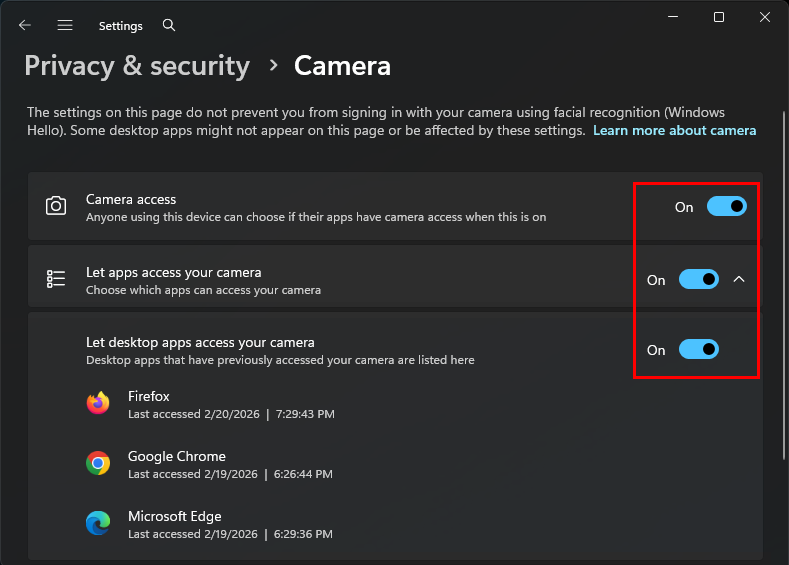
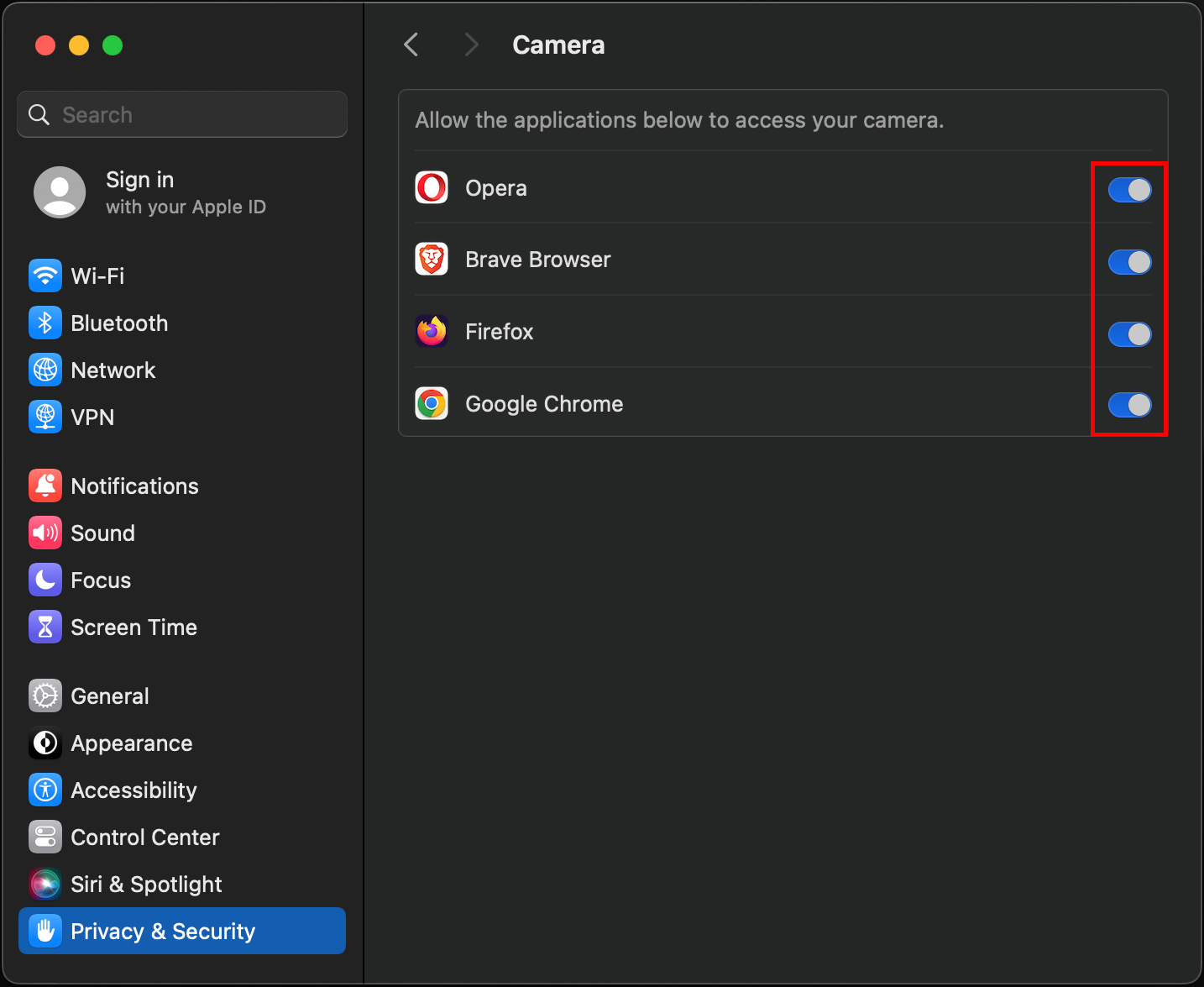
In Windows & MacOS, there is a setting that allows/prevents Apps (like Browsers) from using the camera. Please make sure the Built-In Camera is enabled for the Correct Applications.
Windows - Enabling the Camera
- Open Settings.
- Choose Privacy & Security > Camera.
- Toggle Camera access to provide the appropriate Camera Permissions for Browser Applications.
macOS - Enabling the Camera
- Open System Settings > Privacy & Security.
- Choose Camera.
- Toggle Allow to provide the appropriate Camera Permissions for Browser Applications.
Avoid using Your Phone as an External Camera
Avoid using programs that use Your Phone's Camera as an External Camera (e.g. DroidCam, Windows Phone Link, and iOS Continuity). A Device's Built-In Camera has a higher chance of success than Your Phone's Camera.
A Laptop's Built-In Camera may be disabled if the Laptop Lid is shut. To ensure the Built-In Camera is enabled, please keep the Laptop open.
If an iPhone Continuity Camera is currently being used, then please tap the Disconnect Button, so the Built-In Camera can be used instead.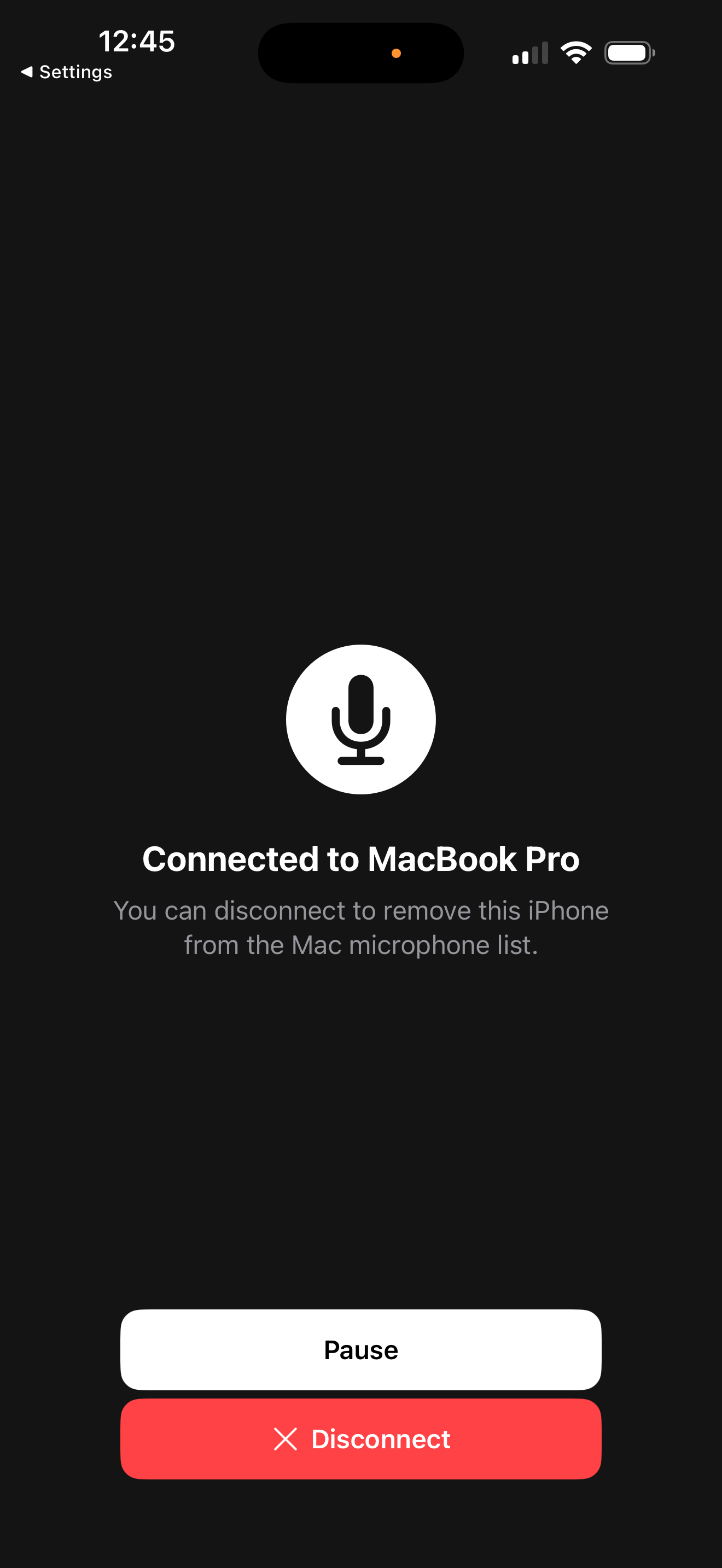
If you see a Pop-Up with Your Phone's Camera in the list, then please choose the Built-In Camera instead.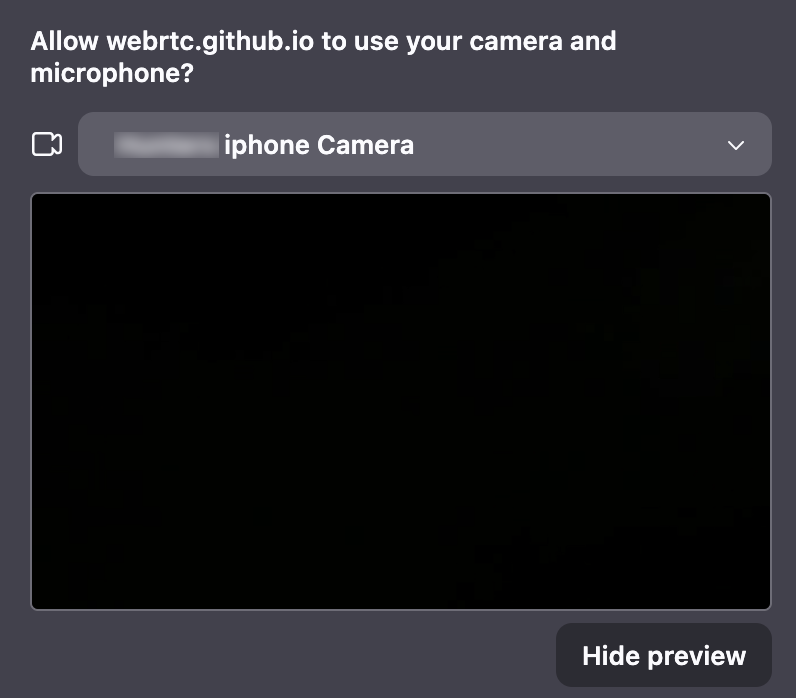
Confirm that Your External Camera is Plugged-In
Typically, External Cameras use a Wired, USB Cable Connection.
However, some External Camera Models may use a Wireless or Bluetooth Connection. In this case, please ensure that the Correct Adaptor has been connected or that Bluetooth Pairing is successful.
Confirm Portrait Mode and Other Camera Effects are Disabled
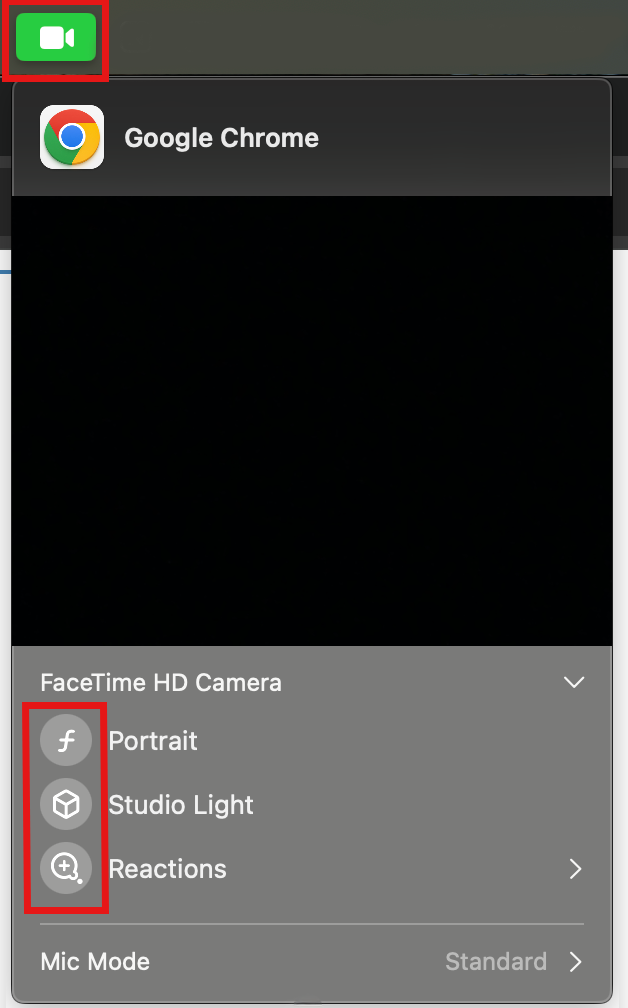
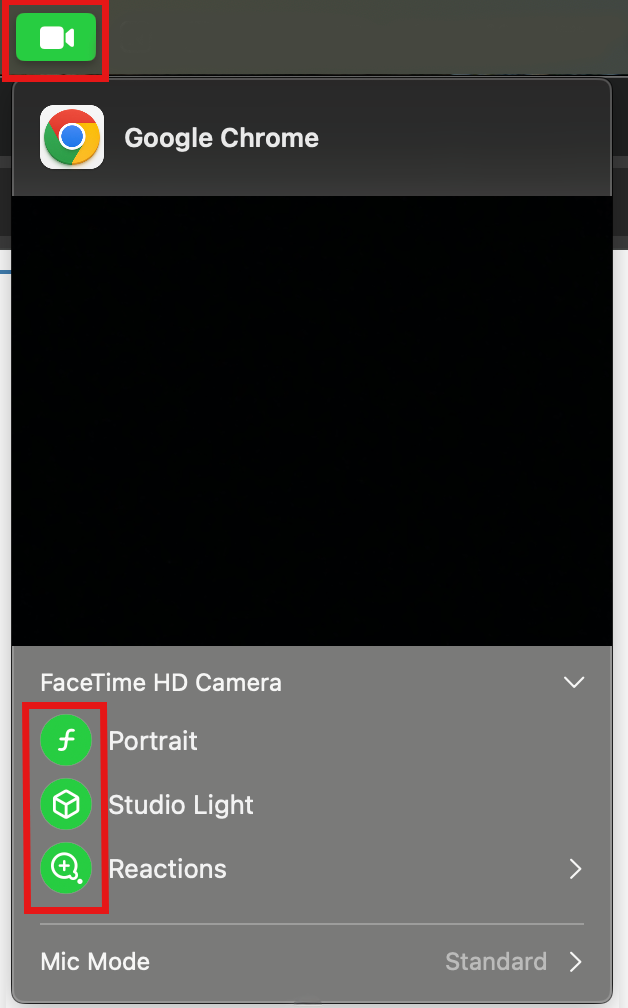
Portrait Mode and other Camera Effects can be used to blur the User's Background of their Live Camera Feed. This can affect the results of a 3D FaceScan and prevent a User from being able to prove 3D Liveness. When performing a 3D FaceScan, please confirm that Portrait Mode and all other Camera Effects are disabled.
macOS
- Click the Green Camera Icon (top bar).
- Open the FaceTime HD Camera Tab.
- Use the Toggles to disable the Portrait Icon and the Other Icons for Camera Effects.
Portrait Mode Disabled (Correct) | Portrait Mode Enabled (Wrong) |
 |  |
Windows 11
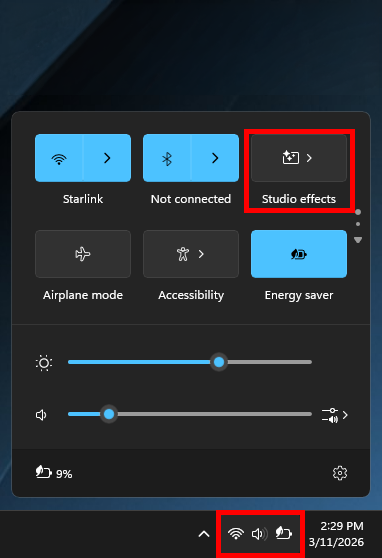
- Click the Quick Settings Menu (Wi-Fi/Sound/Battery icon) in the Bottom-Right Corner.
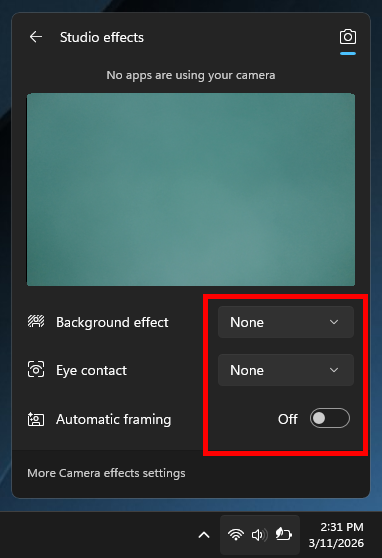
- Select the Studio Effects.
- Use the Toggles to disable Background Effect, Eye contact, and the Other Camera Effects.
Confirm that the Camera Permissions and Settings are Correct
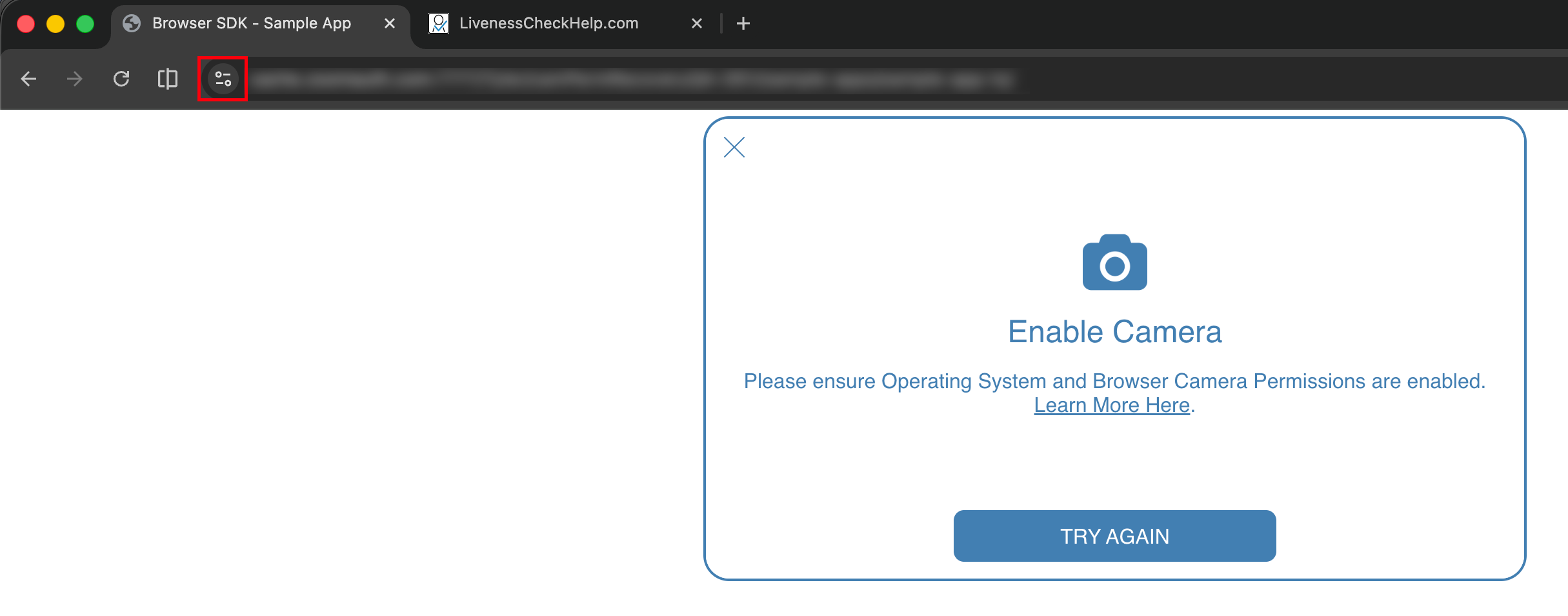
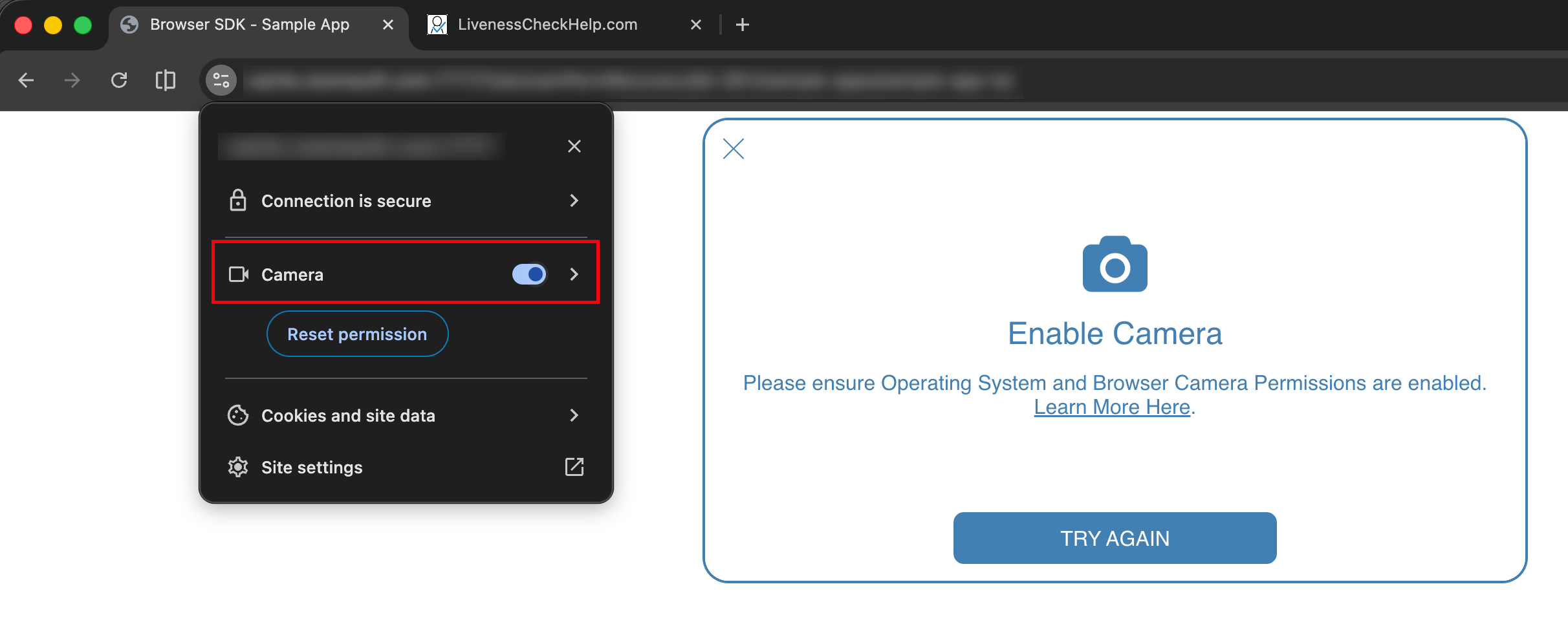
Windows/macOS + Chrome
- Navigate back to the tab where the Enable Camera Screen is open.
- Click the Settings Icon on the Browser URL Bar.
- Toggle to allow the Camera Permissions.
- Return to the Application and click TRY AGAIN.
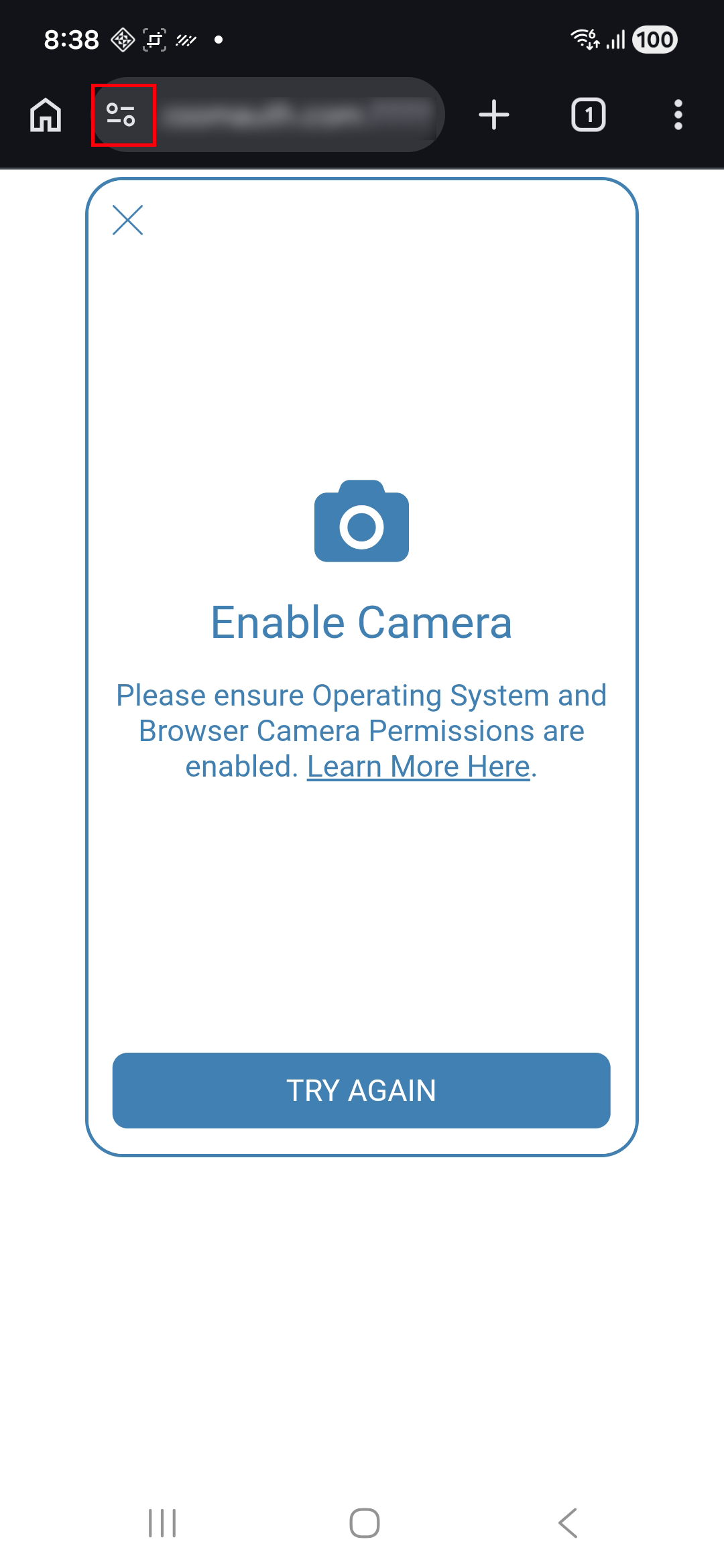
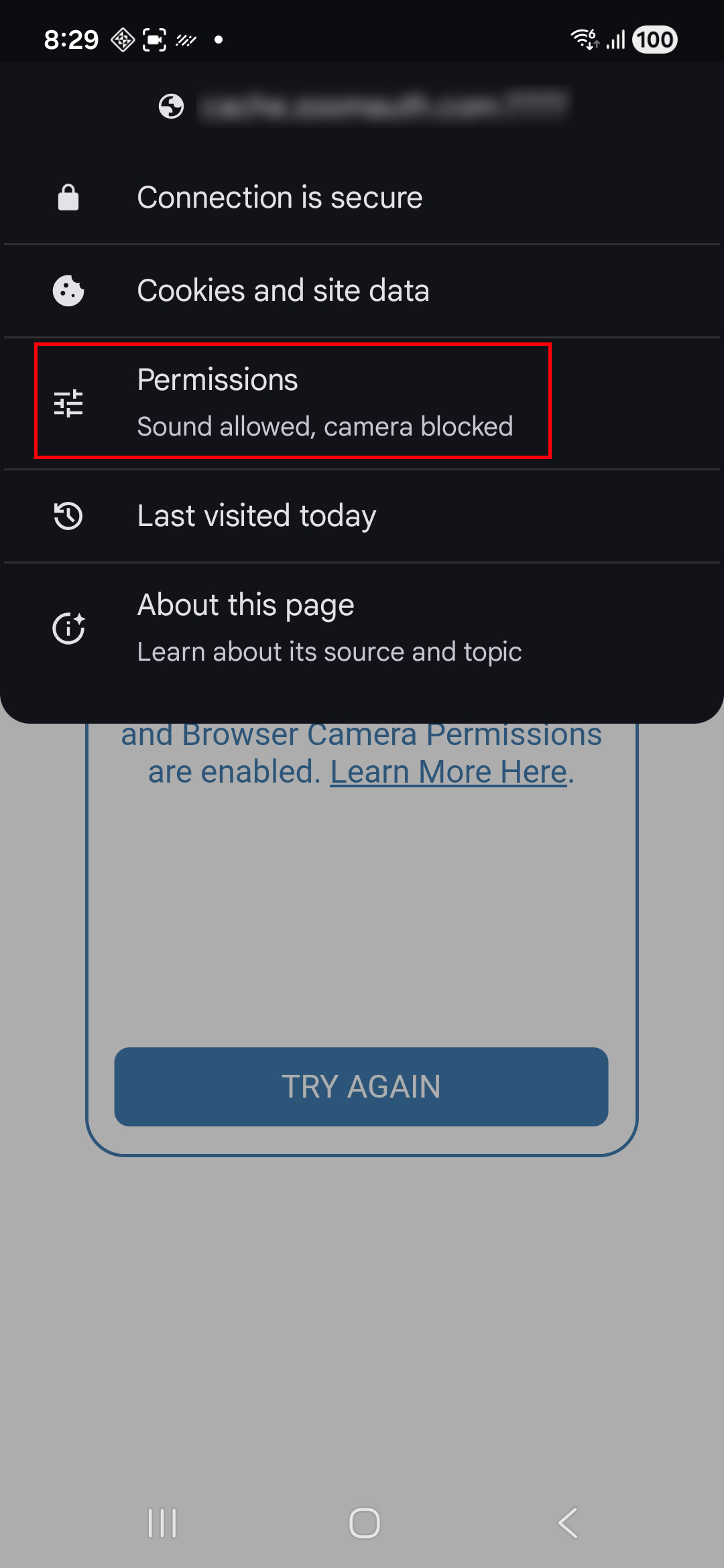
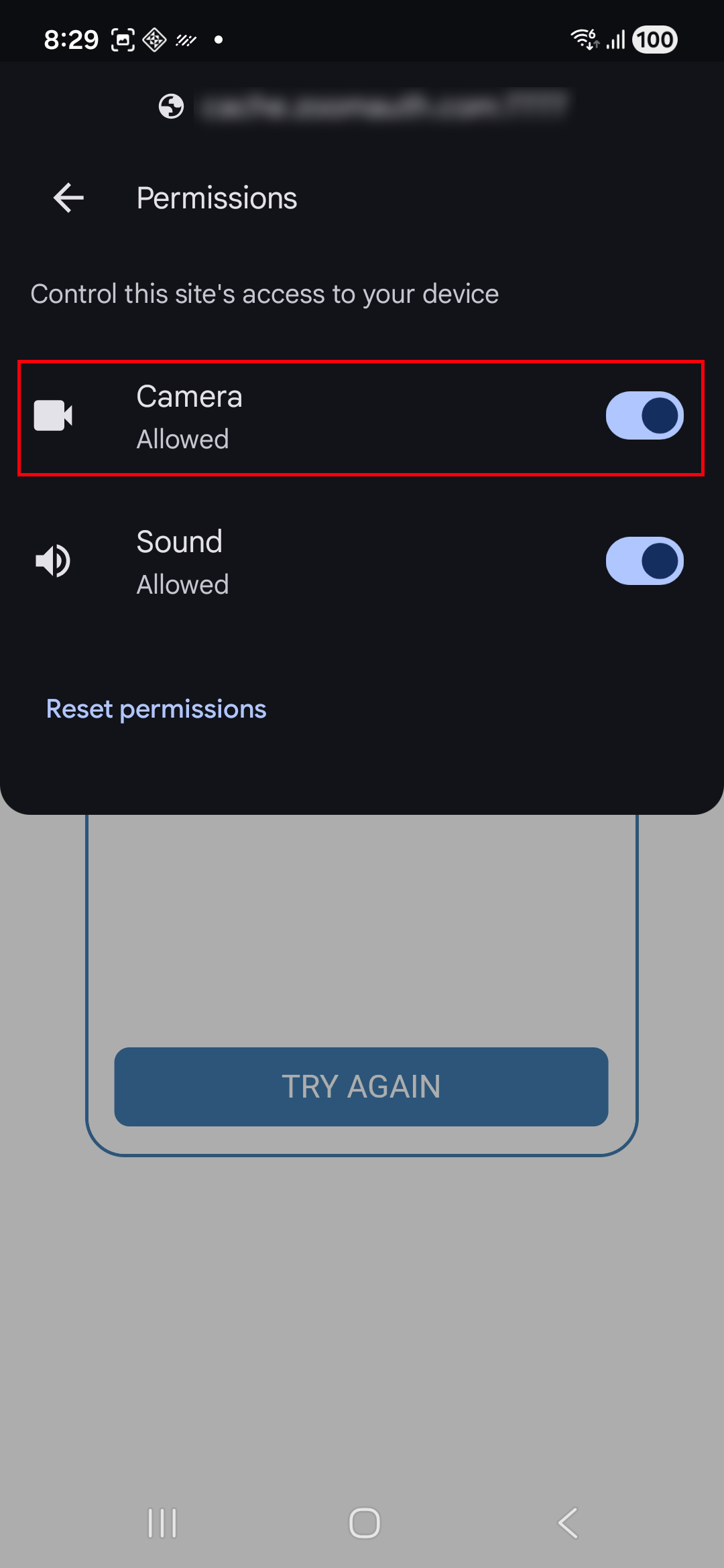
Android + Chrome
- Navigate back to the tab where the Enable Camera Screen is open.
- Tap the Settings Icon on the Browser URL Bar.
- Tap Permissions.
- Toggle to allow the Camera Permissions.
- Return to the Application and tap TRY AGAIN.
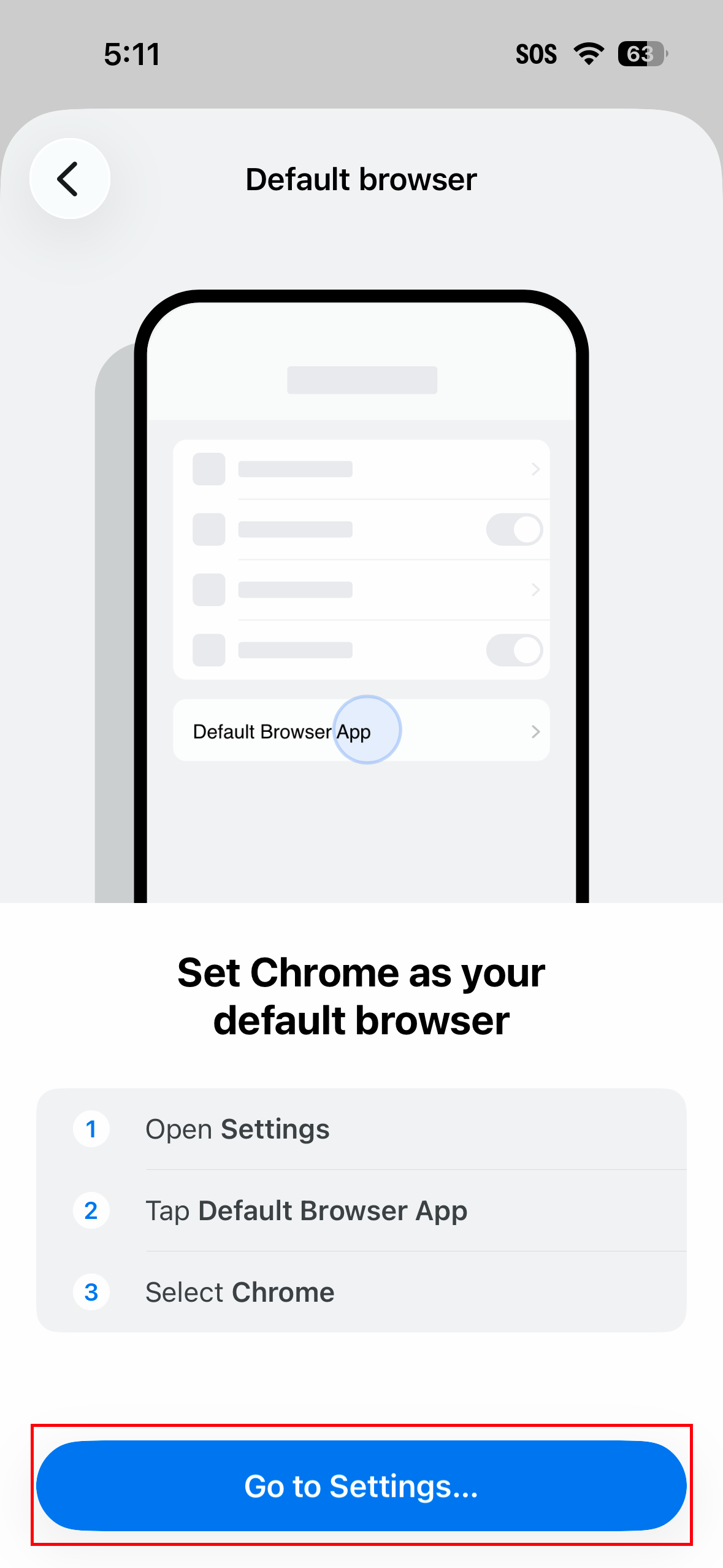
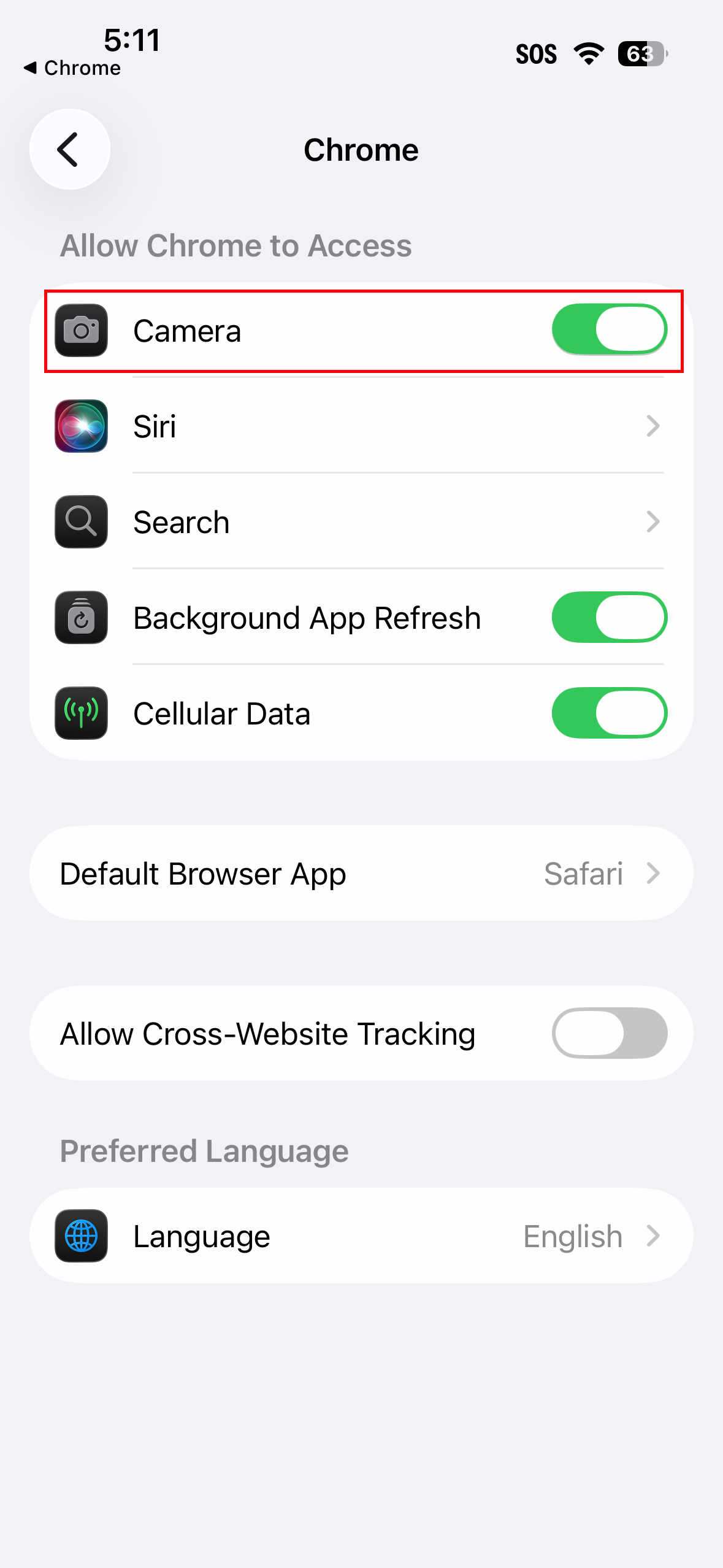
iOS + Chrome
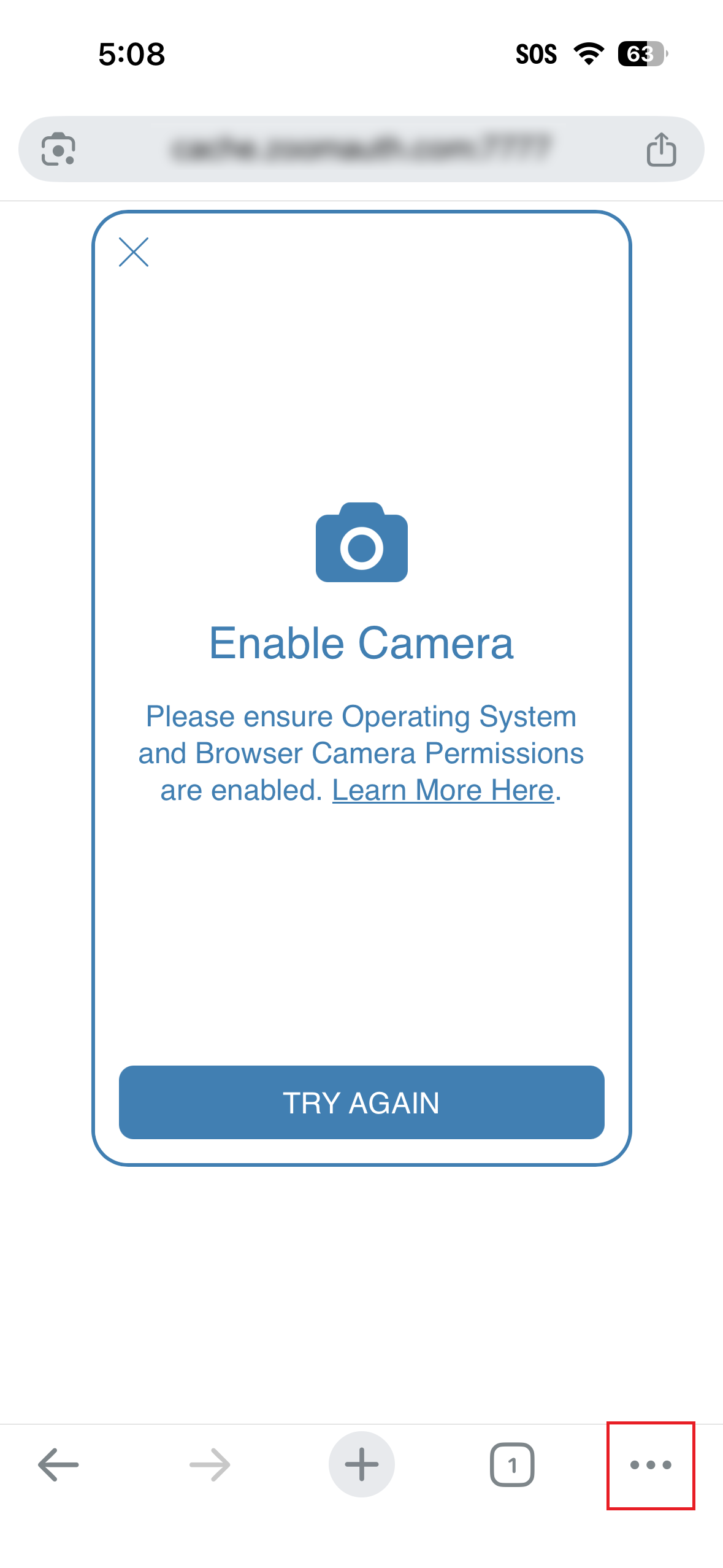
- Navigate back to the tab where the Enable Camera Screen is open.
- Tap the More Settings Icon in the Browser URL Bar.
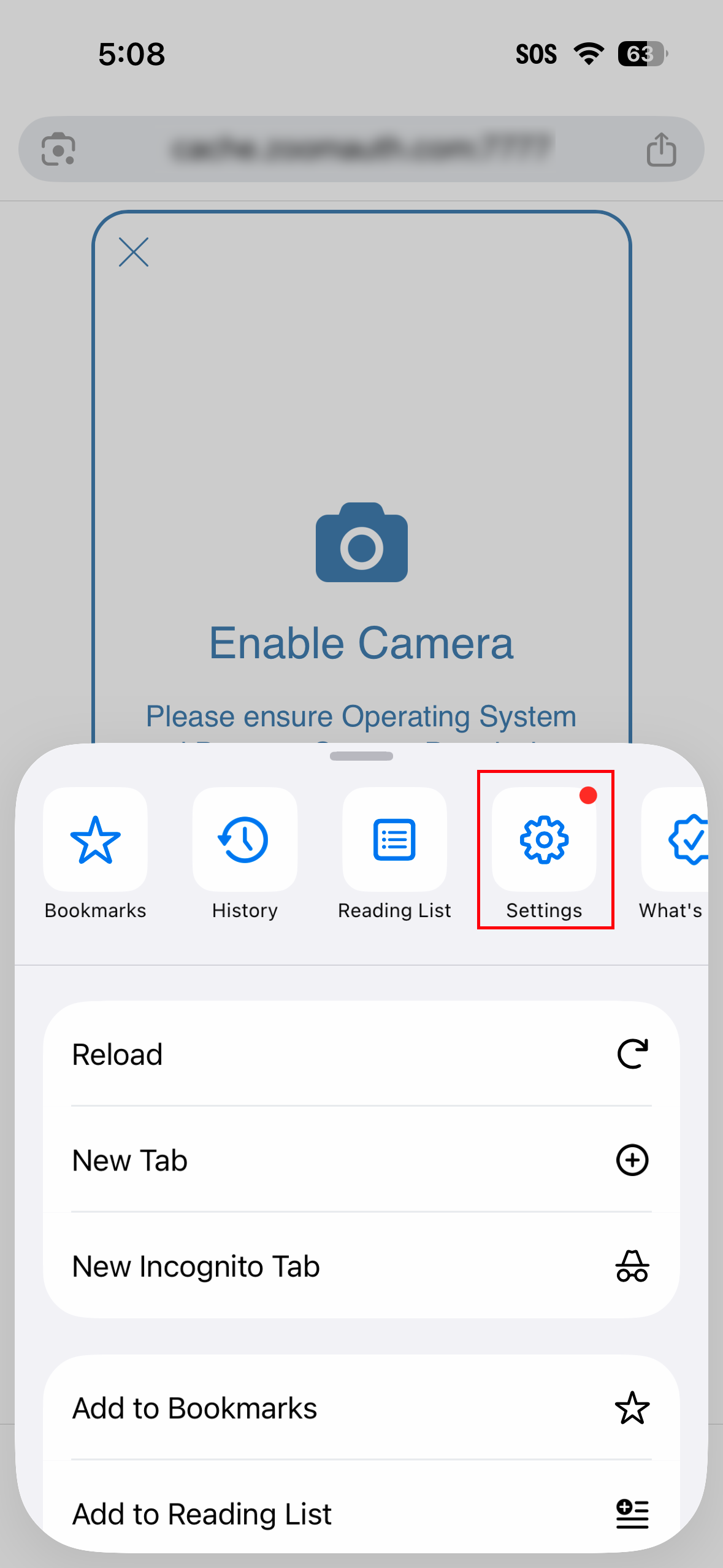
- Tap the Settings Icon.
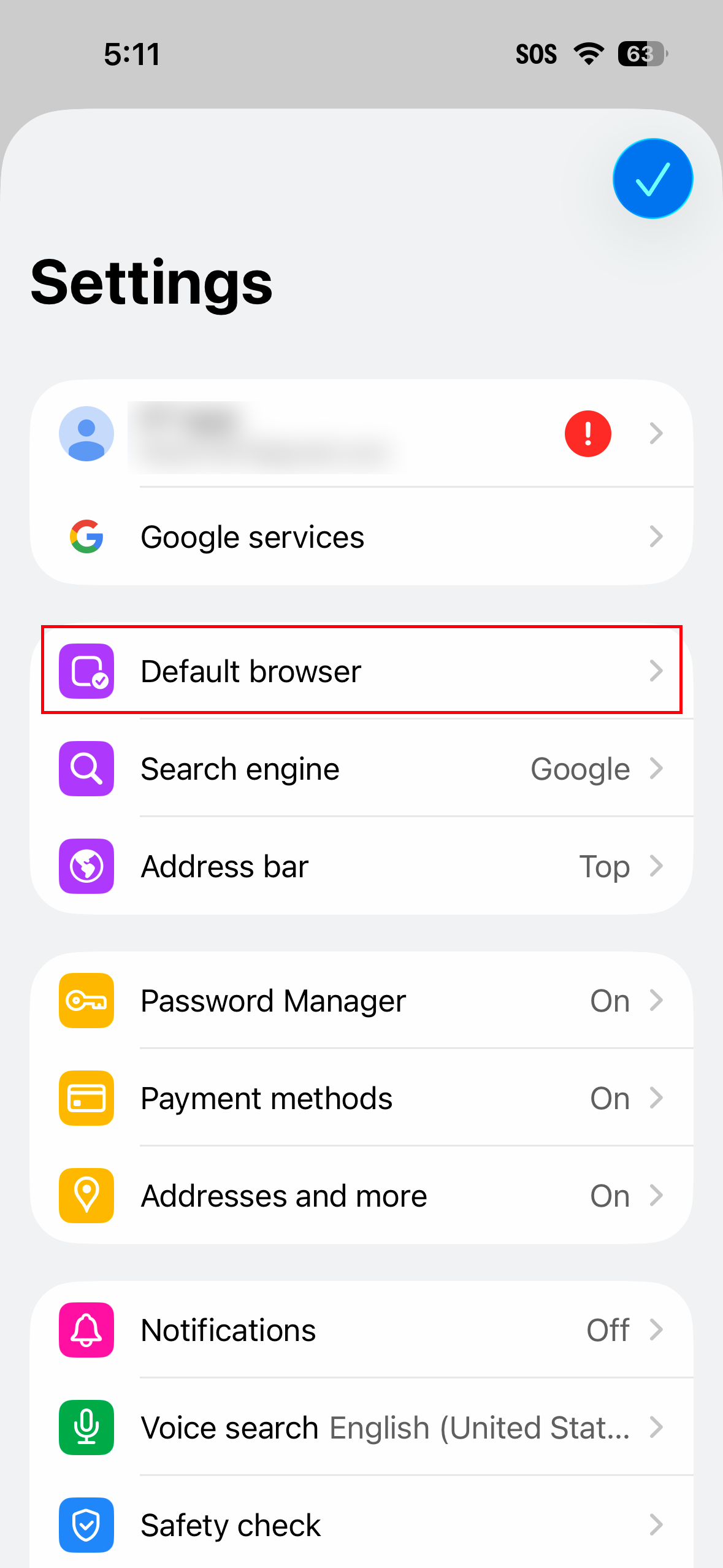
- Tap the Default browser Tab.
- Tap the Go to Settings… Button.
- Toggle to allow the Camera Permissions.
- Return to the Application and tap TRY AGAIN.
Windows/macOS + Firefox
Camera Permissions Pop-Up - "Remember this decision"
Please ensure Remember this decision is checked if the Camera Permissions Pop-Up appears.

Private Browsing
Ensure you are not using Private Browsing Mode, as this can impact the behavior of the Camera.
History Settings - Remember History
Please ensure Your Firefox History Settings are set to Remember history. You can find this setting by navigating to: Settings > Privacy & Security > History.

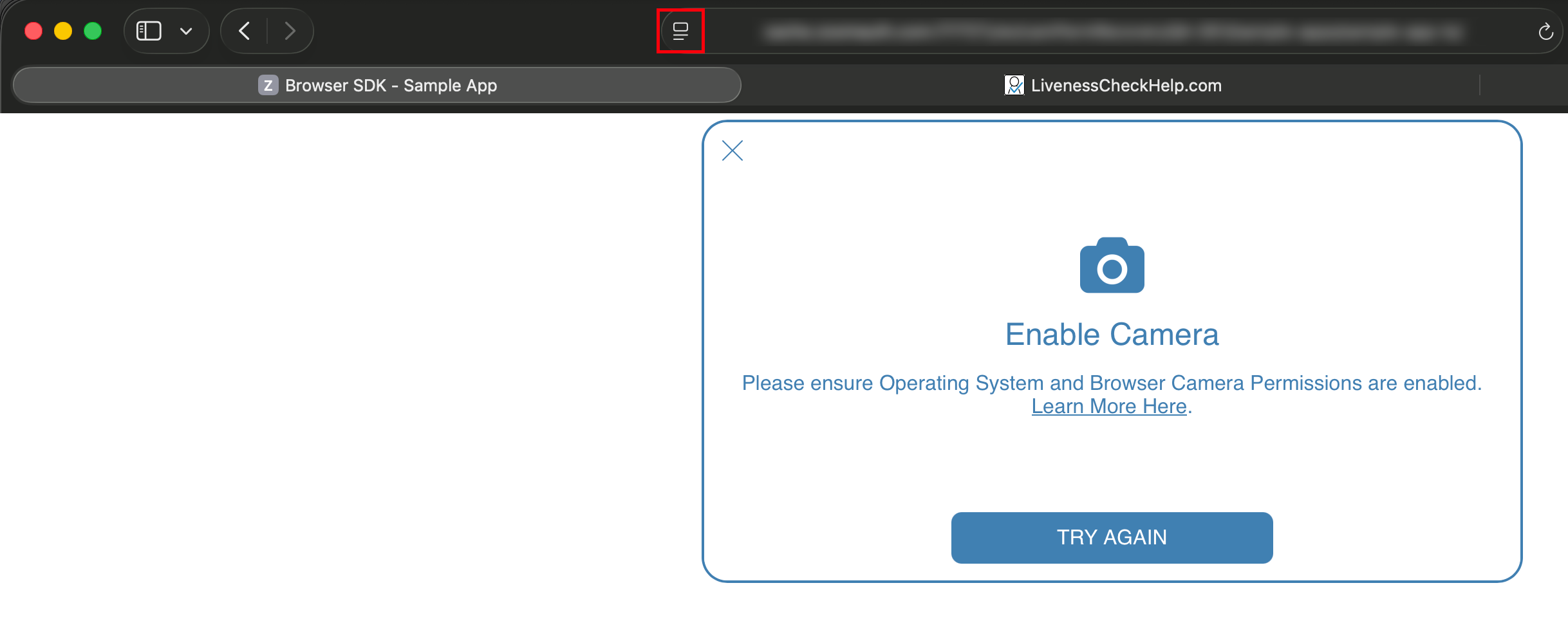
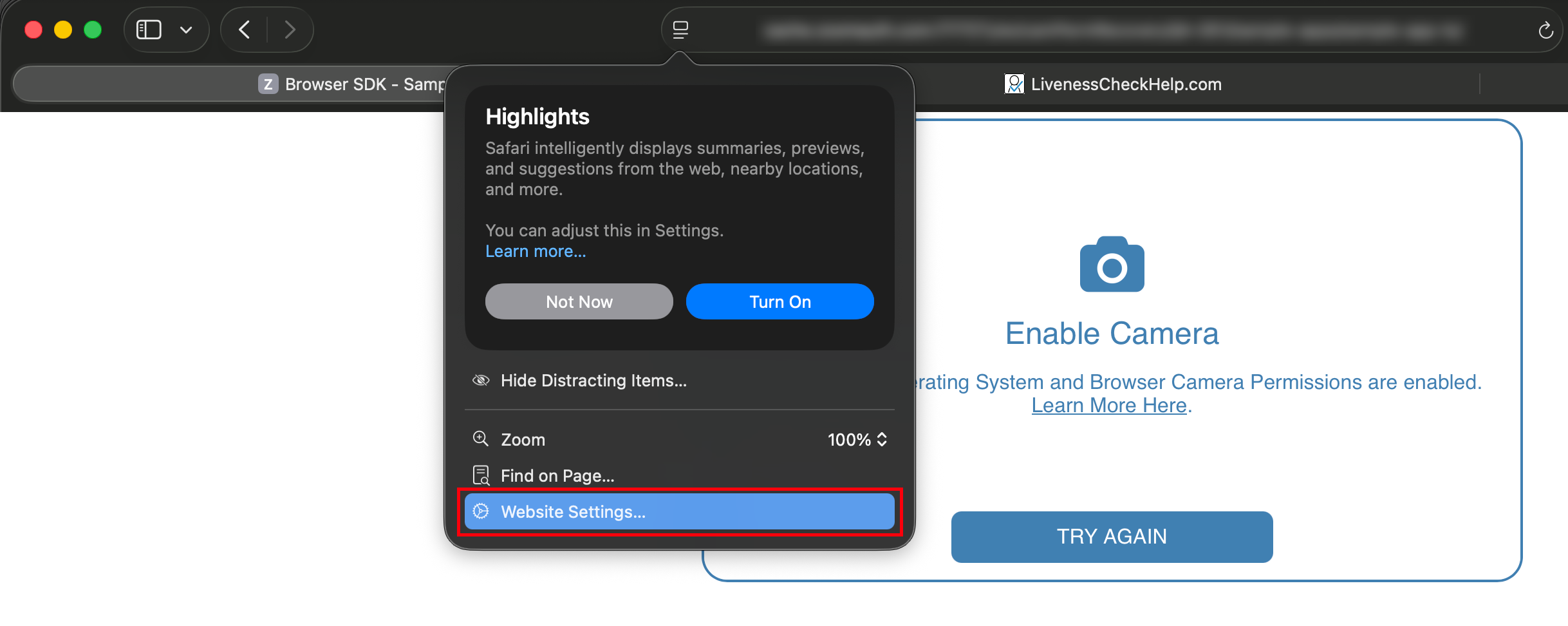
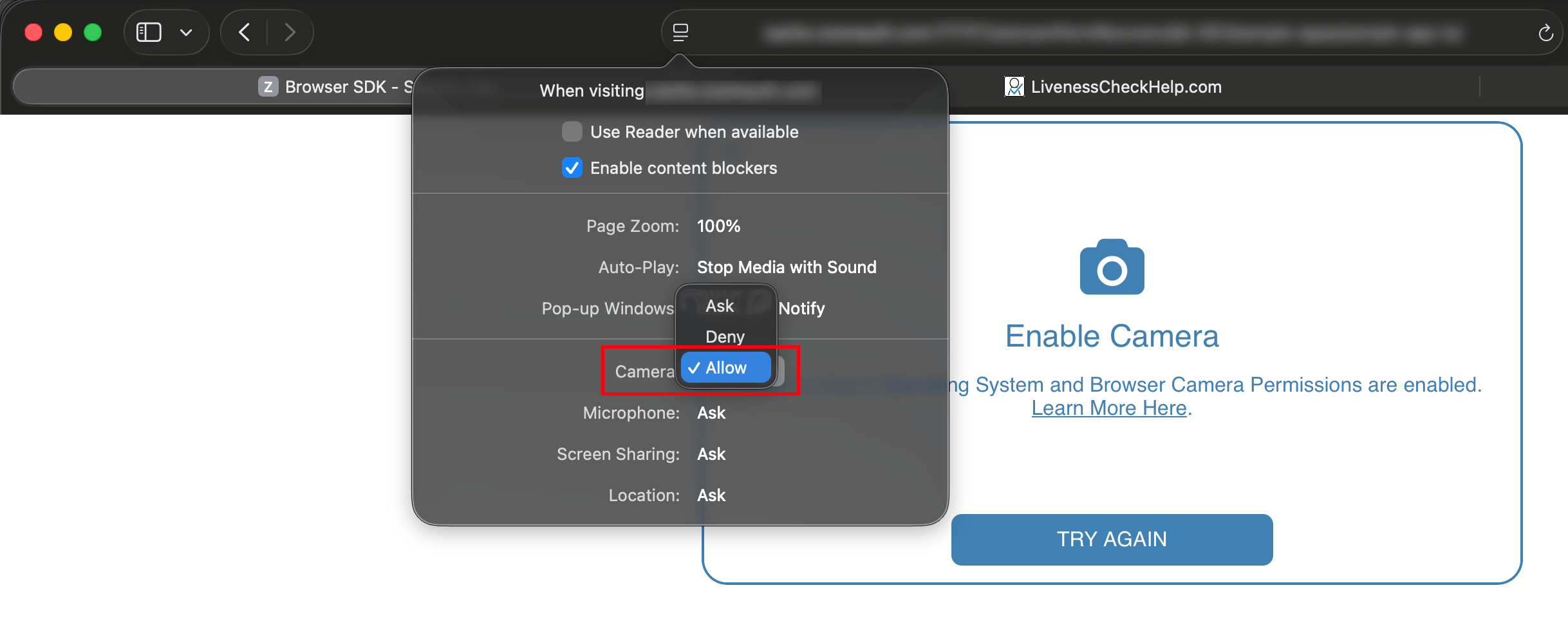
macOS + Safari
- Navigate back to the tab where the Enable Camera Screen is open.
- Click the Settings Icon on the Browser URL Bar.
- Click Website Settings from the Pop-Up Menu.
- Select Allow for Camera Permissions.
- Return to the Application and click TRY AGAIN.
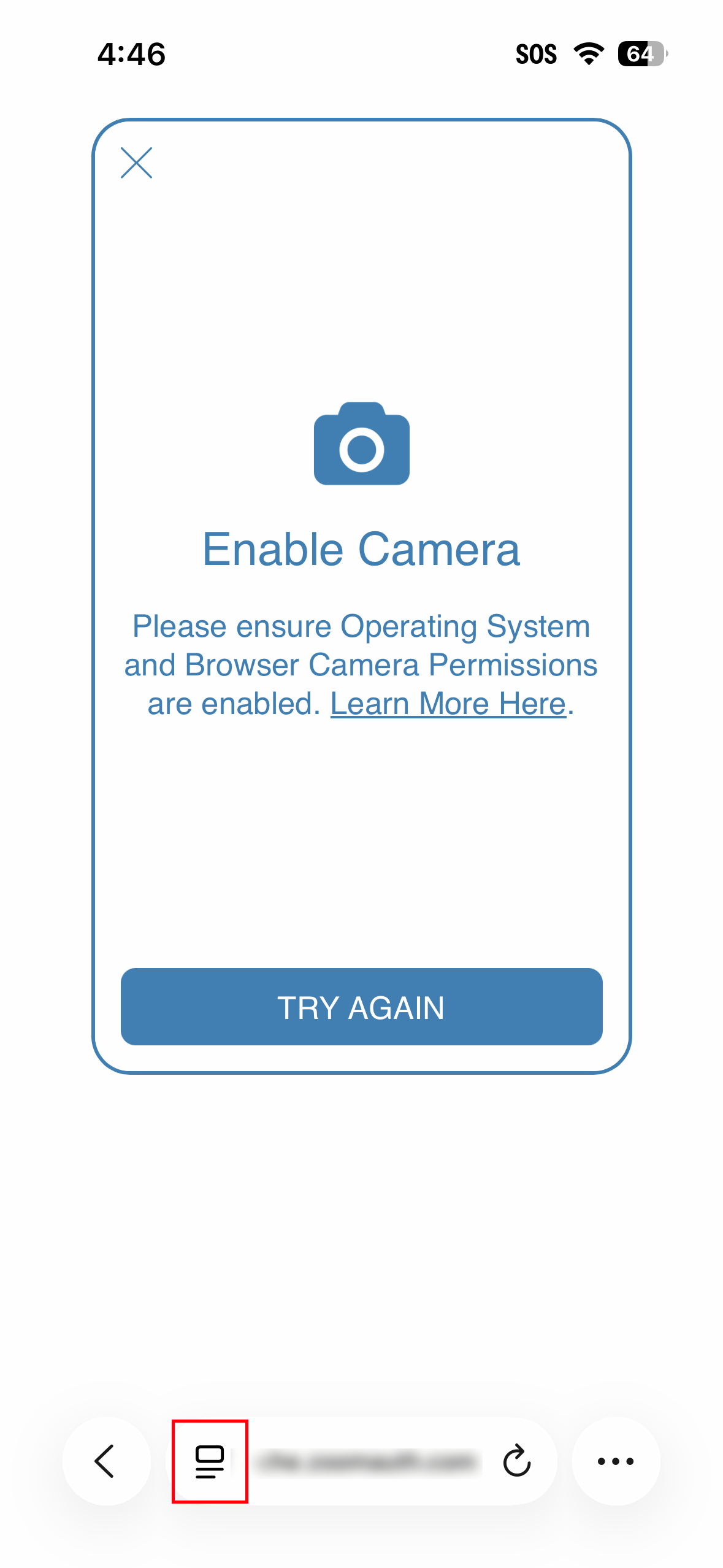
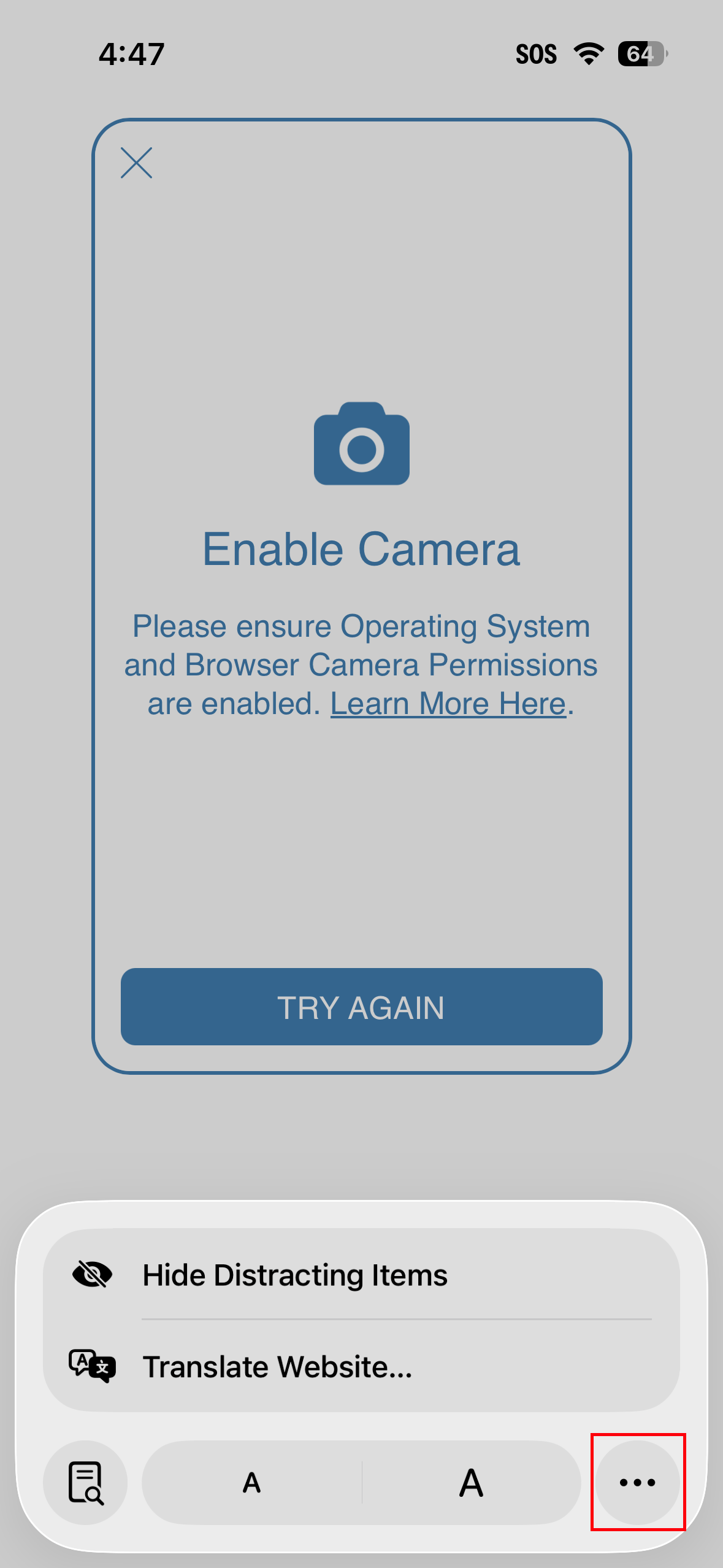
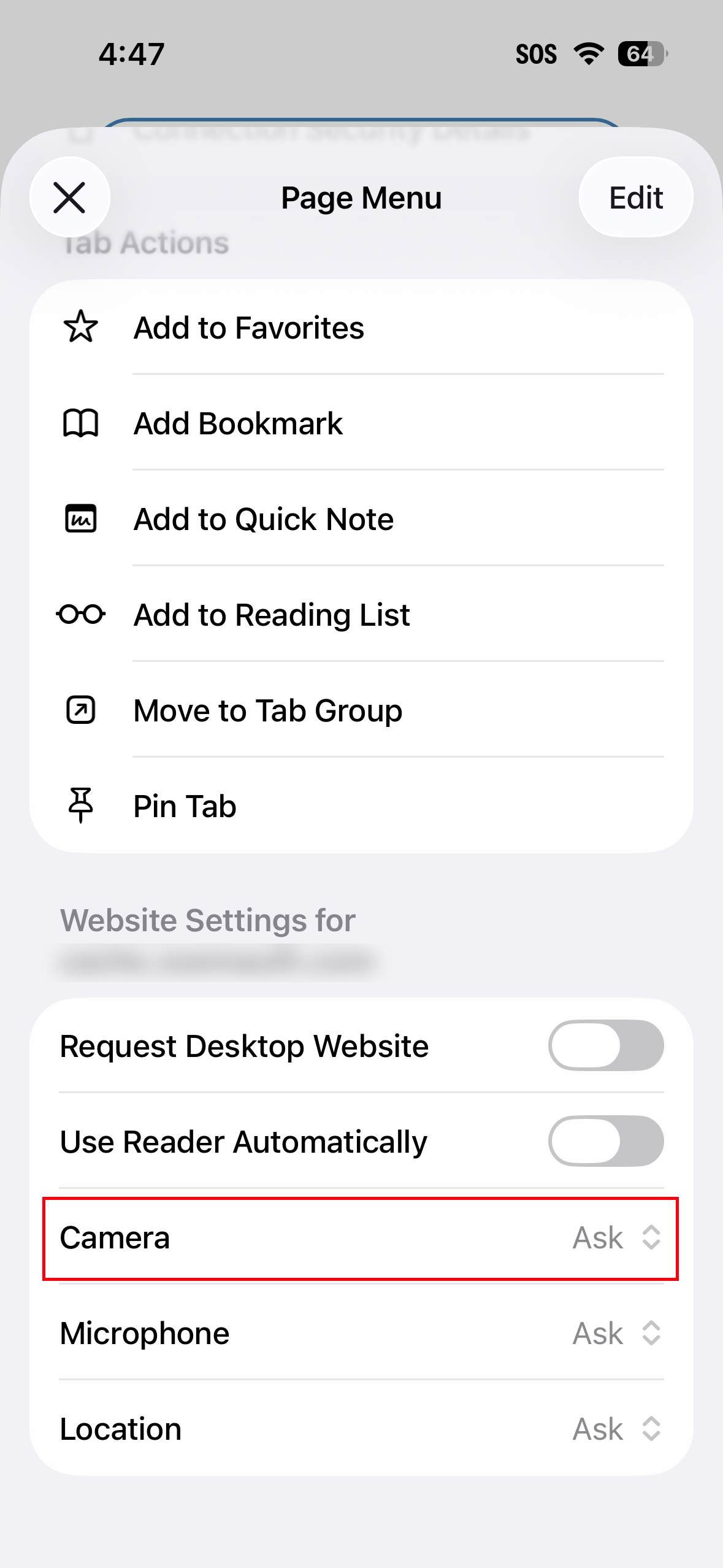
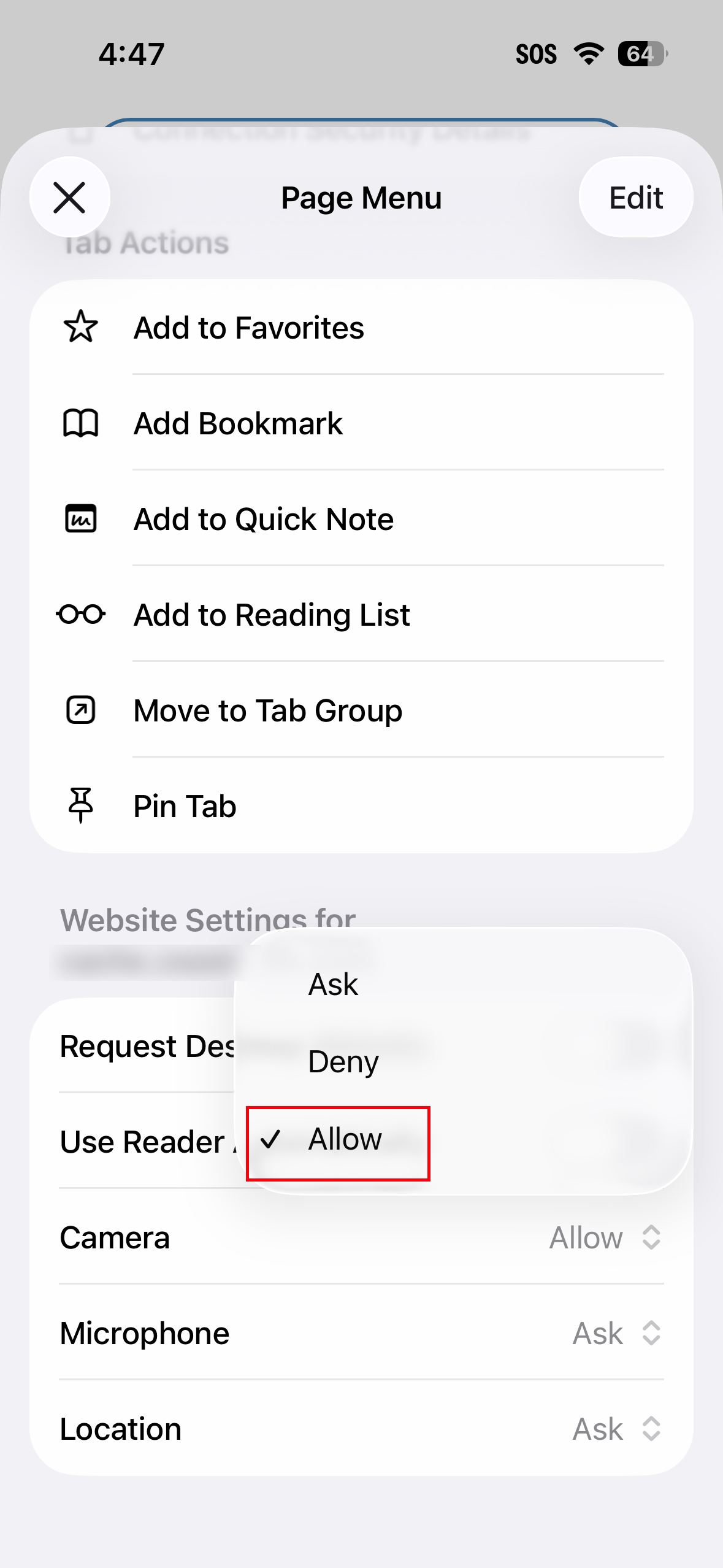
iOS + Safari
- Navigate back to the tab where the Enable Camera Screen is open.
- Tap the Settings Icon on the Browser URL Bar.
- Tap the More Settings Icon on Pop-Up Menu.
- Scroll down to the Camera Settings.
- Toggle to Allow.
- Return to the Application and tap TRY AGAIN.
Windows + Edge
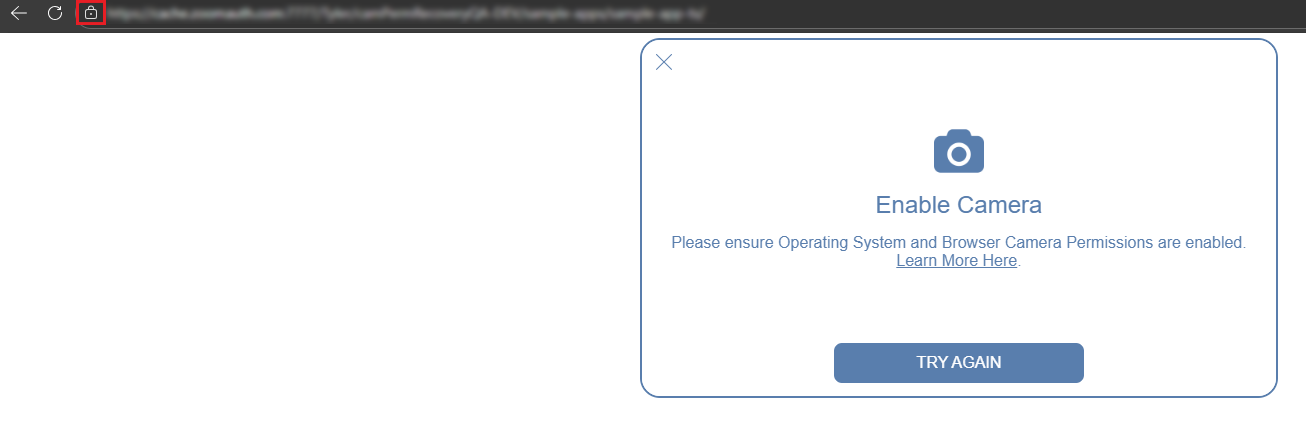
- Navigate back to the tab where the Enable Camera Screen is open.
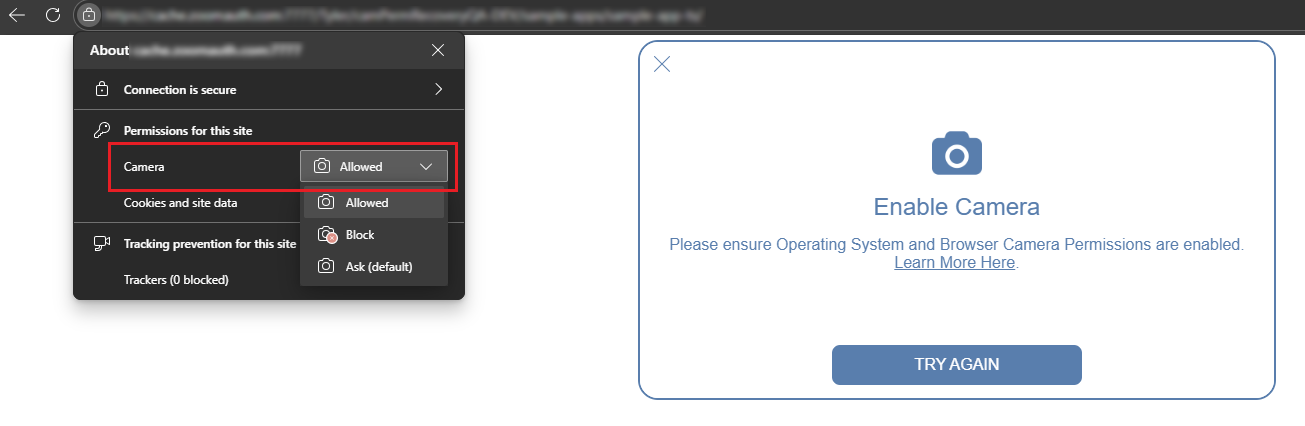
- Click the Lock Icon on the browser URL Bar.
- Toggle to Allowed for the Camera Permissions.
- Return to the Application and click TRY AGAIN.
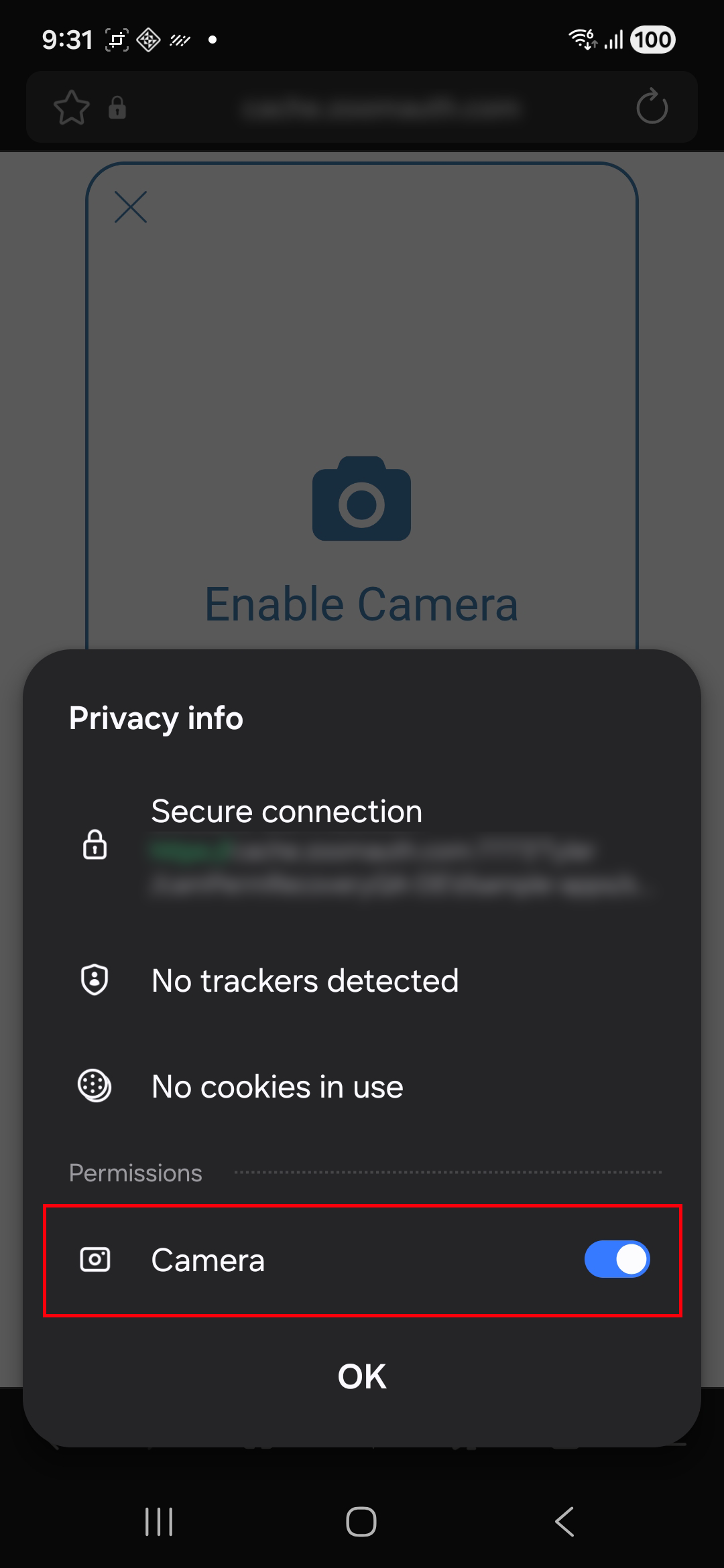
Android + Samsung Internet
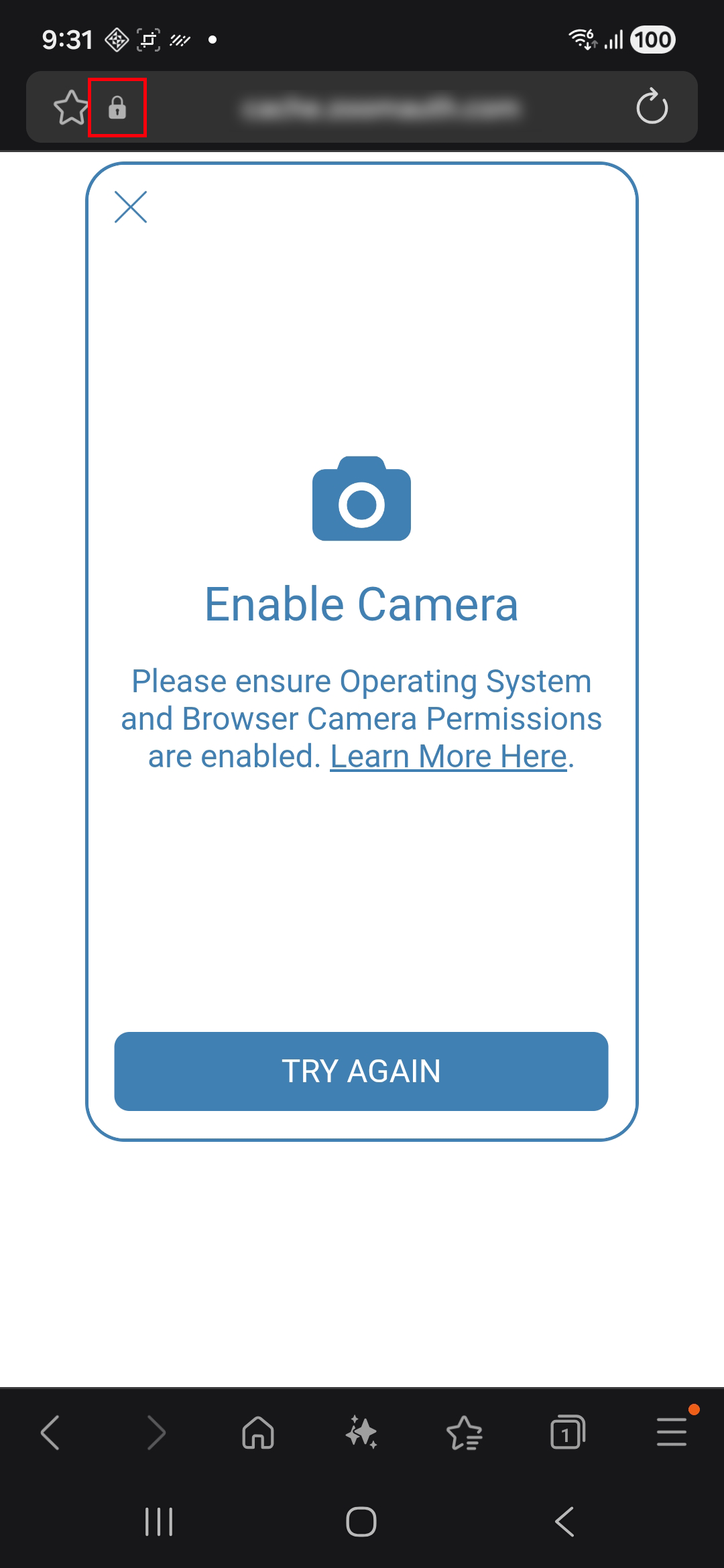
- Navigate back to the tab where the Enable Camera Screen is open.
- Tap the Lock Icon on the Browser URL Bar.
- Toggle to allow the Camera Permissions.
- Return to the Application and tap TRY AGAIN.
Copyright 2026 - LivenessCheckHelp.com - All Rights Reserved.